The SMARTBoard is a really cool program that lets users create their own interactive smartboard lessons. I was really excited first but quickly got frustrated at how things worked. I wished it was more user friendly and had an interactive tutorial that would let you mess around with all the features easily. I felt like most of the time I was confused trying to figure out how to navigate the different aspects of the program trying to make it do what I want it to do. I was frustrated at how long it took for me to develop a five minute lesson but I realized I was also just trying to figure out what needs to be done most of the time, so next time when I am supposed to make another one it shouldn't probably take as long.
The other issue is that I felt that the SMARTBoard caters better to groups of elementary school children and smaller groups, as it seems impossible for it to really engage large groups of students, especially high schoolers to get involved directly with the board. The ISBE standards requires for them to synthesize and analyze and it is kind of difficult for students to do that in a SMARTboard and in a very short time frame. I would perhaps think that it would be great if it had features that would directly engage with older students, but it could also perhaps be with a longer time frame than five minutes.
The SMARTBoard can be used by secondary school teachers to teach about graphing in Economics and Mathematics, mapping in Geography, text close readings for English and Language Arts, but the features for it is still limited. Most of the animations are geared towards younger children, and wouldn't be deemed "cool enough" for highschoolers.
Concerns however, is that SMARTBoards costs a lot of money. And with debates of funding and what to spend, I think spending on SMARTBoards is less likely in contrast to spending on Google Chromebooks. I think Chromebooks have a better way in getting all the students engaged and covers a wider scope of age groups, and is more flexible to how the teachers might use it to assist in students' learning. This also makes it seem that only richer, privately funded schools have access to these SMARTBoards, and if these boards actually boosts achievements, it could possibly be causing a greater disparity in achievement acquisition in the different socio-economic groups.
Overall, I think with more practice and experimenting with the program, I might be able to give a better review over the program. But for now, I would say that incorporating the SMARTBoard in the classroom should be something that teachers should at the very least learn to try to do.
Monday, October 19, 2015

Wednesday, October 7, 2015
Module 3: HaikuDeck and ScreenCast
This past week I've been learning how to use HaikuDeck and subsequently, talk about it in my Screencast project.
I enjoyed using HaikuDeck as it was a very simple presentation tool that creates simple, beautiful presentations. I think it enforces teachers and professionals to not depend on powerpoint to explain things but instead use it as just an aide, as it is supposed to be.
I could see how in older students it would be a struggle because they are dependent upon the powerpoints for notes, but I think that isn't as good because then they are just busy taking notes instead of paying attention to the lecture or the explanation the teacher is providing.
It also enforces teachers to be effective teachers. I recall my old biology teacher who is so dependent upon his powerpoints and just reads them off to us. It was very boring, unstimulating, and nobody cared as they can just get the information in a web search or school systems such as Moodle pages. Students are not engaged and are not learning, and teachers aren't able to teach without their powerpoints. Enforcing, short text in powerpoints and instead emphasize on the visuals makes powerpoints a visual aide, and keeps the focus on the teacher's lecture and explanation.
It's also good for students that are easily distracted to make their powerpoints as it could search for related pictures from within the site, and so it does not need for the user to go to another tab and look for pictures and then save and reupload it. Haikudeck also connects to Facebook, Google Drive, Picasa, etc so that getting pictures from these sites are easy and straight forward, without being distracting with their newsfeed and anything else.
Aside from that, I learned about how to use Screencast. I thought it was interesting as I've seen some people do it when I seek for tutorials on Youtube and always wondered how they did that. I tried Jing to do so, but for some reason it did not capture my screen and instead just showcase it as a black screen with voice. So I don't think I'd recommend Jing to do a screencast.
What worked best was Screencast-o-matic, which did it smoothly and uploaded it directly to Youtube, which was convenient for me to easily share it with others and link it to my portfolio. It eliminates the step to download the video to my computer and then upload it to Youtube. It's faster and more effective in sharing. Screencast was not able to do that and instead just share it in it's own site.
I enjoyed using HaikuDeck as it was a very simple presentation tool that creates simple, beautiful presentations. I think it enforces teachers and professionals to not depend on powerpoint to explain things but instead use it as just an aide, as it is supposed to be.
I could see how in older students it would be a struggle because they are dependent upon the powerpoints for notes, but I think that isn't as good because then they are just busy taking notes instead of paying attention to the lecture or the explanation the teacher is providing.
It also enforces teachers to be effective teachers. I recall my old biology teacher who is so dependent upon his powerpoints and just reads them off to us. It was very boring, unstimulating, and nobody cared as they can just get the information in a web search or school systems such as Moodle pages. Students are not engaged and are not learning, and teachers aren't able to teach without their powerpoints. Enforcing, short text in powerpoints and instead emphasize on the visuals makes powerpoints a visual aide, and keeps the focus on the teacher's lecture and explanation.
It's also good for students that are easily distracted to make their powerpoints as it could search for related pictures from within the site, and so it does not need for the user to go to another tab and look for pictures and then save and reupload it. Haikudeck also connects to Facebook, Google Drive, Picasa, etc so that getting pictures from these sites are easy and straight forward, without being distracting with their newsfeed and anything else.
Aside from that, I learned about how to use Screencast. I thought it was interesting as I've seen some people do it when I seek for tutorials on Youtube and always wondered how they did that. I tried Jing to do so, but for some reason it did not capture my screen and instead just showcase it as a black screen with voice. So I don't think I'd recommend Jing to do a screencast.
What worked best was Screencast-o-matic, which did it smoothly and uploaded it directly to Youtube, which was convenient for me to easily share it with others and link it to my portfolio. It eliminates the step to download the video to my computer and then upload it to Youtube. It's faster and more effective in sharing. Screencast was not able to do that and instead just share it in it's own site.
Monday, September 28, 2015
Google Asus Chromebook Review
Let me start off with saying that I am an Apple girl.
I own a Macbook Pro, an iPad mini and an iPhone 5s. However, I do like new technology and I jumped at the chance to try out the Asus Chromebook C200.
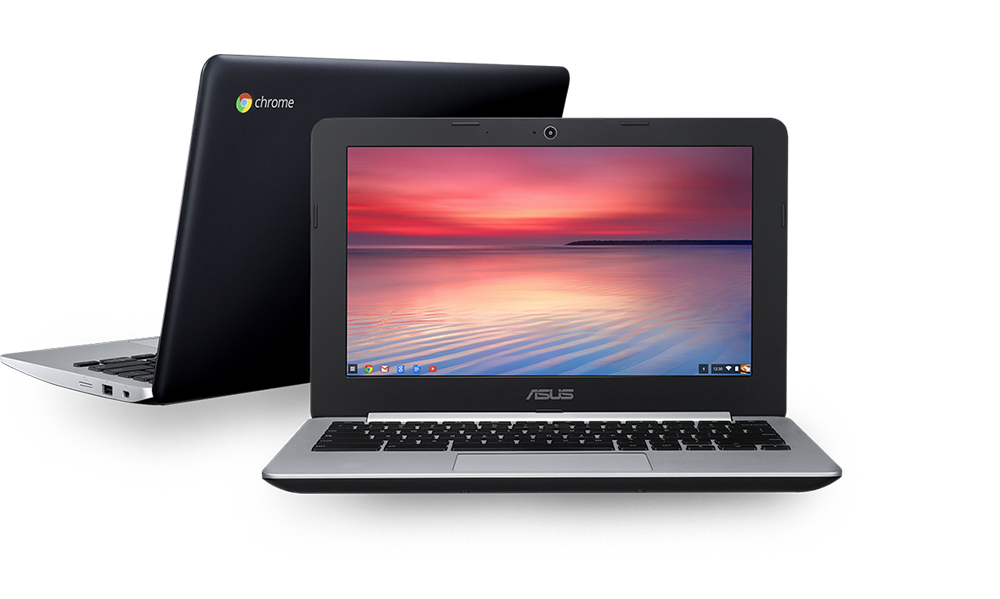 The first difference that I notice using the Chromebook is how light it is. At 2.5 pounds, the Chromebook gave my back a break from hauling my 4.5 pound Macbook. Though it is worthy to note that their size are quite different, it is still very light.
I am also very impressed with it's battery life. I would often go through three weekdays before I need to charge. This makes it a lot more convenient as well as I do not need to haul around boxy chargers or constantly look for an electric outlet to charge.
Aside from that, it is quite a limited device.
You're most likely going to be staring at the Google Chrome browser, going from tab to tab. There are options for split screening so you can multitask, but I did have to look it up and press a few buttons to make it work.
There are various apps for the Chromebook through the Chrome Web Store, including Spotify, Skype, Netflix, etc and it's growing - so there is an incredible potential in how the Chromebook is used to do various other activities.
But for now, it is still limited to run Applications and Programs that might be necessary for others such as Audacity or Photoshop for example since they do not have it on a browser platform.
In my opinion, the Chromebook could be useful if you have an array of apps you know you would need and use, which could take quite some time exploring the vast number of apps available. It is practical for students as well to take notes through the browser version of Evernote, or simply in Microsoft Word.
However, there were times when I tried downloading a Word document, and it didn't open. It might perhaps due to an old version of the Word file, but it did cause some issues.
Conclusively, Chromebooks to me is an okay device. It isn't the greatest with the best specifications. It has fewer features and processing power than the usual Macbooks or Windows laptop, but at the $200-300 price tag, it is not bad. It is limited to do what a browser can do - but a browser has been increasingly powerful with more and more applications and programs being developed. It is great for the day to day use of students who go from class to class taking notes and doing homework and writing papers, but it's certainly not adequate to replace a traditional laptop in doing things that require more than just a browser - no matter how great Chrome is.
I own a Macbook Pro, an iPad mini and an iPhone 5s. However, I do like new technology and I jumped at the chance to try out the Asus Chromebook C200.
I am also very impressed with it's battery life. I would often go through three weekdays before I need to charge. This makes it a lot more convenient as well as I do not need to haul around boxy chargers or constantly look for an electric outlet to charge.
Aside from that, it is quite a limited device.
You're most likely going to be staring at the Google Chrome browser, going from tab to tab. There are options for split screening so you can multitask, but I did have to look it up and press a few buttons to make it work.
There are various apps for the Chromebook through the Chrome Web Store, including Spotify, Skype, Netflix, etc and it's growing - so there is an incredible potential in how the Chromebook is used to do various other activities.
But for now, it is still limited to run Applications and Programs that might be necessary for others such as Audacity or Photoshop for example since they do not have it on a browser platform.
In my opinion, the Chromebook could be useful if you have an array of apps you know you would need and use, which could take quite some time exploring the vast number of apps available. It is practical for students as well to take notes through the browser version of Evernote, or simply in Microsoft Word.
However, there were times when I tried downloading a Word document, and it didn't open. It might perhaps due to an old version of the Word file, but it did cause some issues.
Conclusively, Chromebooks to me is an okay device. It isn't the greatest with the best specifications. It has fewer features and processing power than the usual Macbooks or Windows laptop, but at the $200-300 price tag, it is not bad. It is limited to do what a browser can do - but a browser has been increasingly powerful with more and more applications and programs being developed. It is great for the day to day use of students who go from class to class taking notes and doing homework and writing papers, but it's certainly not adequate to replace a traditional laptop in doing things that require more than just a browser - no matter how great Chrome is.
Thursday, September 24, 2015
Module 2: Digital Story
This past week, I've been busy with working on my Digital Story project.
Basically, a digital story is a way of narrating a certain personal event in a way that is informative and interactive through a video format, constructed through technological tools such as Audacity and WeVideo.
I enjoyed the concept of it, as I think it would be a great tool for my students who could not stand Powerpoints and would prefer videos that they could later rewatch and review outside of class. It is also presented in a personal, narrative style which could appeal to students who best learn that way.
Though as a teacher I think it is a great way to accommodate to my students with differentiated instruction, as a student I don't enjoy it quite as much. I notice that when I was making the voice narration I had to slow down a lot in my speaking and when constructing the video, the pace is much slower than I would like. As a learner I prefer engaging, spirited discussion and so this does not appeal to me.
I also did not like that WeVideo only provides the Ken Burns effect for transitions (or that I know of), because there are certain points in which I feel I wanted it to be more instantaneous and fast paced and thus prefer the fast slide shows. Ken Burns effect is great at creating movement in still images but I think it forces to make things go really slowly and can be boring.
Overall, the digital story project could be a good assignment for students to do, but am hoping for a transitional effect that is not annoying like most random powerpoint animation, but faster and more exciting than the Ken Burns effect.
Basically, a digital story is a way of narrating a certain personal event in a way that is informative and interactive through a video format, constructed through technological tools such as Audacity and WeVideo.
I enjoyed the concept of it, as I think it would be a great tool for my students who could not stand Powerpoints and would prefer videos that they could later rewatch and review outside of class. It is also presented in a personal, narrative style which could appeal to students who best learn that way.
Though as a teacher I think it is a great way to accommodate to my students with differentiated instruction, as a student I don't enjoy it quite as much. I notice that when I was making the voice narration I had to slow down a lot in my speaking and when constructing the video, the pace is much slower than I would like. As a learner I prefer engaging, spirited discussion and so this does not appeal to me.
I also did not like that WeVideo only provides the Ken Burns effect for transitions (or that I know of), because there are certain points in which I feel I wanted it to be more instantaneous and fast paced and thus prefer the fast slide shows. Ken Burns effect is great at creating movement in still images but I think it forces to make things go really slowly and can be boring.
Overall, the digital story project could be a good assignment for students to do, but am hoping for a transitional effect that is not annoying like most random powerpoint animation, but faster and more exciting than the Ken Burns effect.
Monday, September 7, 2015
Module 1 - Jigsaw, Putting the Pieces Together
The Jigsaw Method is a way of teaching that lets students
learn new concepts and then be responsible in teaching a group of their peers
that unique information and learning from the other students of their other topics.
This enables them to learn independently through discovery.
I think this is effective because
then the students are being held accountable and responsible with their
learning, as if not, the other students would also miss out on the information
that he/she is supposed to learn. It also gives them ownership of their own
learning, as they are asked to be active in the learning process instead of
being passive listeners of lectures or be easily distracted with other
thoughts. The Jigsaw Method requires them to be focused in group discussions
and be responsible for their peers understanding, and thus he/she will feel
compelled to master it that they can even reach the Evaluating stage of the
Bloom’s Taxanomy of Learning, which is quite high already. They evaluate when
they are teaching, as they would see what they had learn and try to answer
their peer’s questions in regards to it.

As I want to be an English teacher
for secondary students, I think I could implement this method in different
ways. I could have the students be in groups studying different characters
(both main and supporting characters) and how each character of the story
affected the plot, and as they gather together in their jigsaw groups, they’ll
be able to learn how purposeful and important all of the characters are in
forming the story.
Subscribe to:
Posts (Atom)